
Overview
This guide provides an overview of how to create an account, manage subscriptions, configure devices and obtain credentials to receive GNSS corrections from Skylark.
Skylark is a wide-area, cloud-based GNSS corrections service that delivers real-time data enabling high-precision positioning. The Skylark Portal is an online platform that can be used to purchase and manage Skylark subscriptions.
New Account Creation
To create a new account complete and submit the registration form at account.swiftnav.com/sign-up.
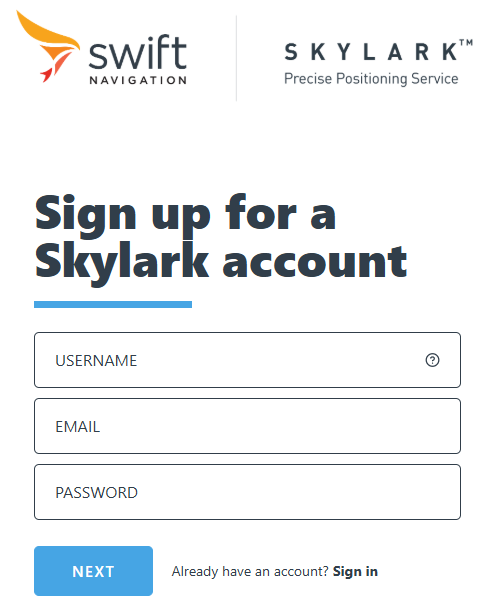
The USERNAME will be used as the suffix for your NTRIP usernames. It's recommended to use your company name as a username. The username can contain only lowercase letters, numbers, and hyphens, must start with a letter, and end with a letter or number.
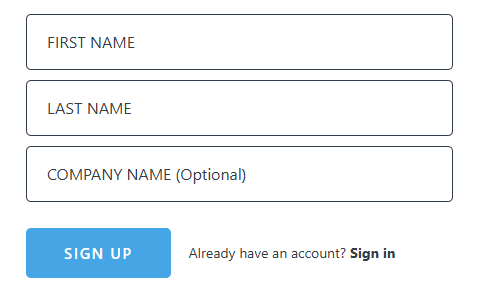
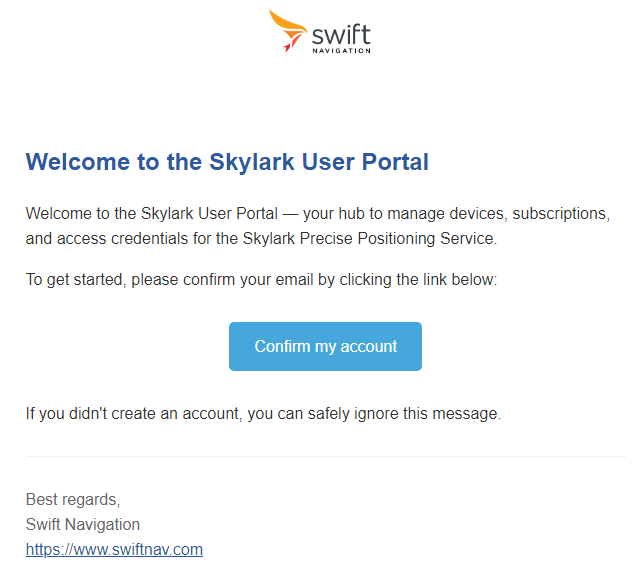
Upon account creation you'll need to verify your email address to be able to access your Skylark account features. The verification email is sent from Swift Navigation Support to the email provided in the form. Click Confirm my account in the email to confirm your new account.
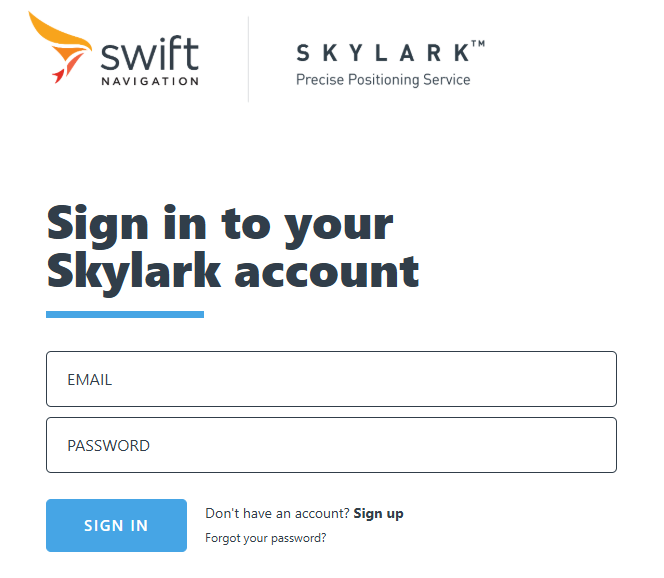
After email verification you can sign in to your account at account.skylark.swiftnav.com/login and access all its features.
Initial 14-Day Free Trial
New Skylark users are eligible for a 14-day free trial. No credit card is required.
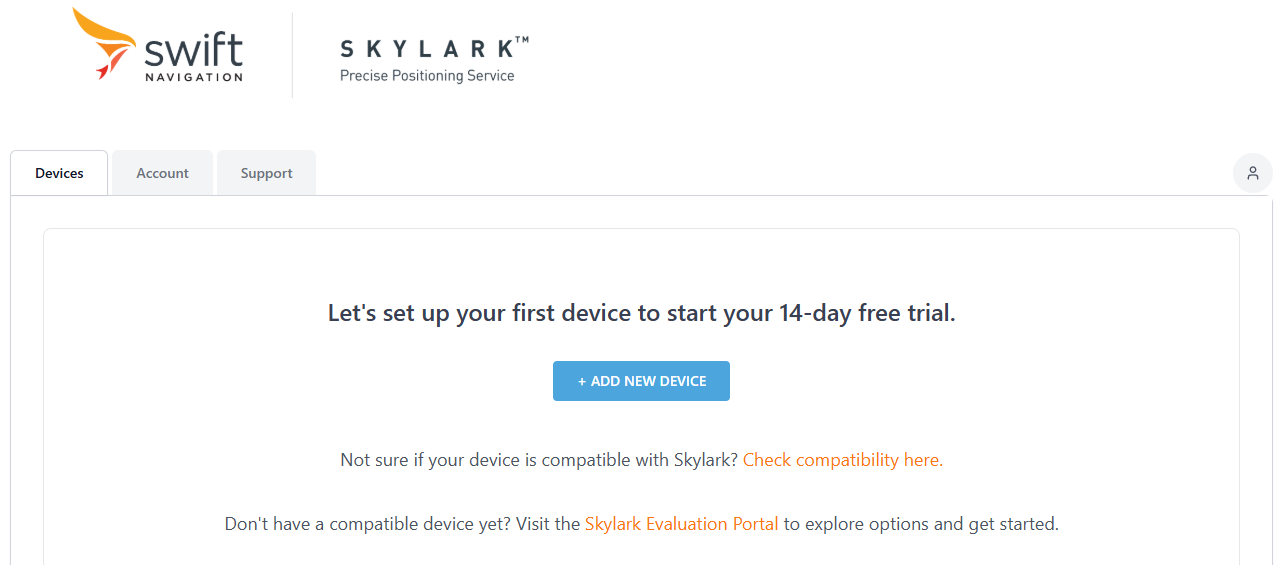
To start your trial click ADD NEW DEVICE button on Devices tab.
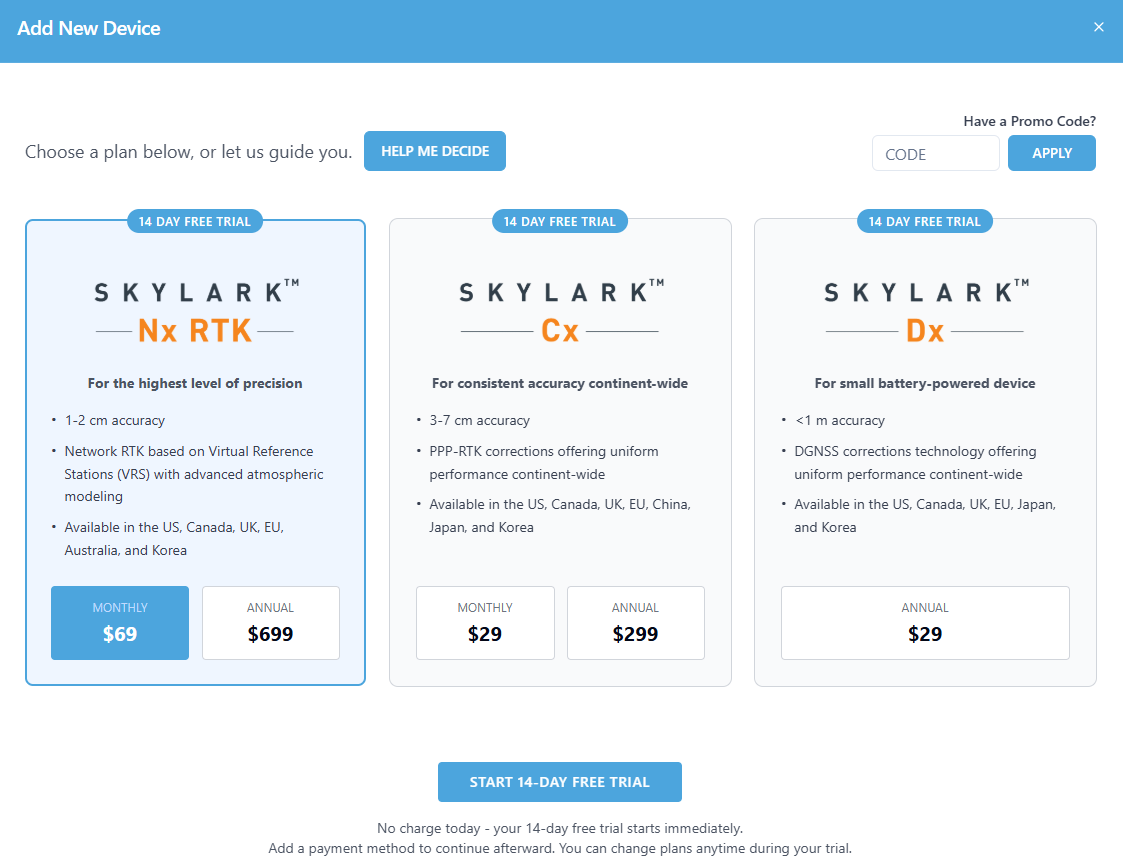
Select a plan and click START 14-DAY FREE TRIAL button.
Your new device will be created and the NTRIP client credentials displayed. The system will also send an email confirmation with NTRIP credentials.
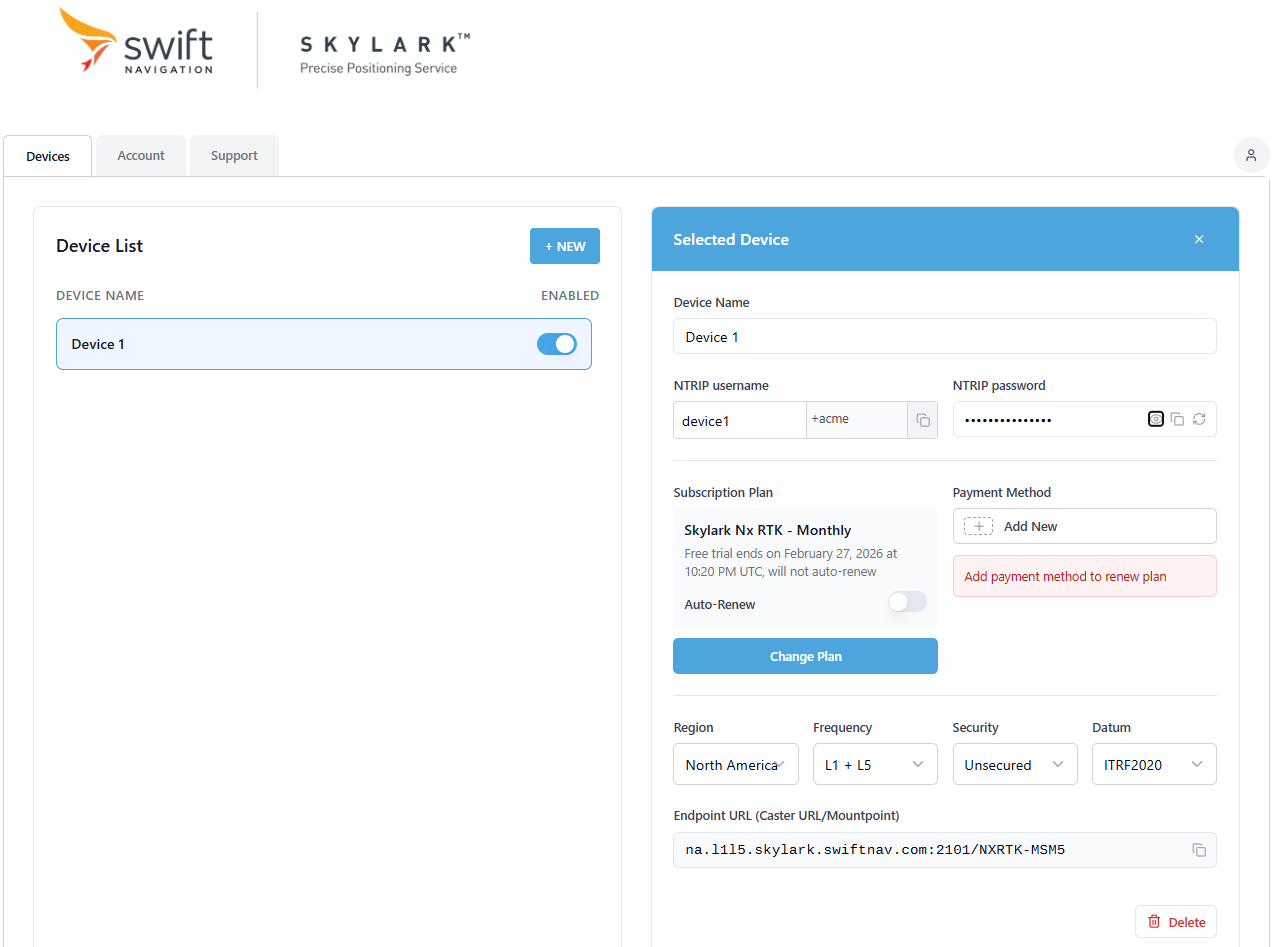
Use selection lists at the bottom right of the page to display constructed NTRIP host name, port and mountpoint appropriate to your location and the receiver. They, together with the username and password, need to be entered in the NTRIP client configuration on your GNSS receiver to receive corrections.
NOTE: Once the window is closed or view changed, the NTRIP password will not appear again and a new password would need to be generated if it was lost.
Add payment method to use this device after the initial trial period.
Payment Methods
To add a payment method click NEW button on the Account tab in Payment Methods section.
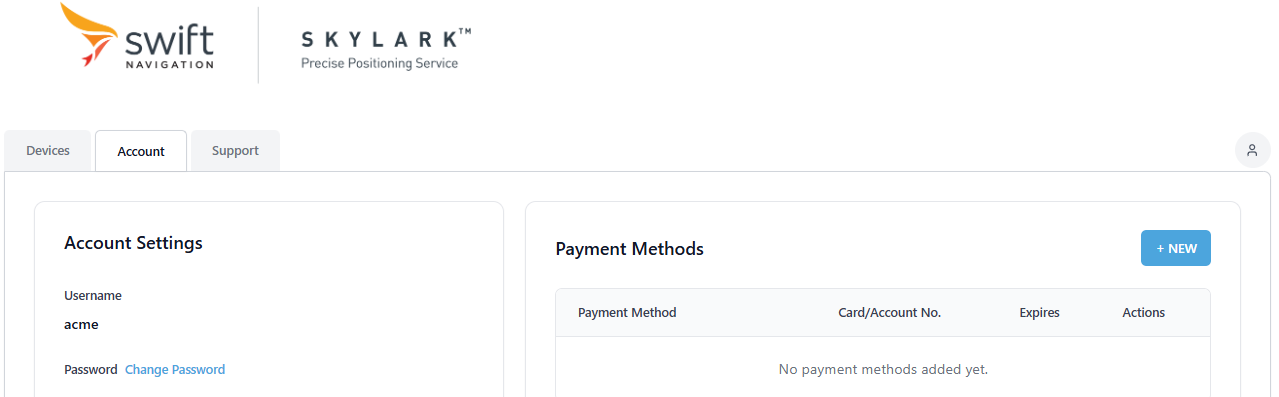
Payment methods with credit card, US bank account and Google Pay are available.
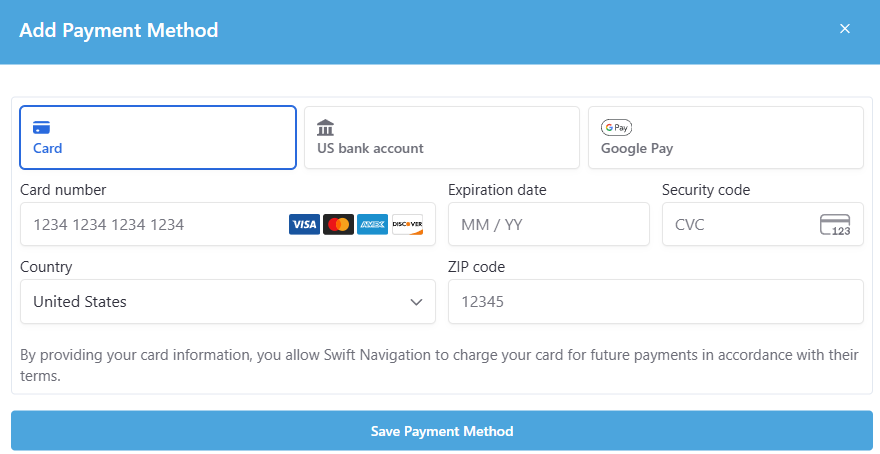
Click Save Payment Method after entering payment method details. Payment methods are displayed on the Account tab.
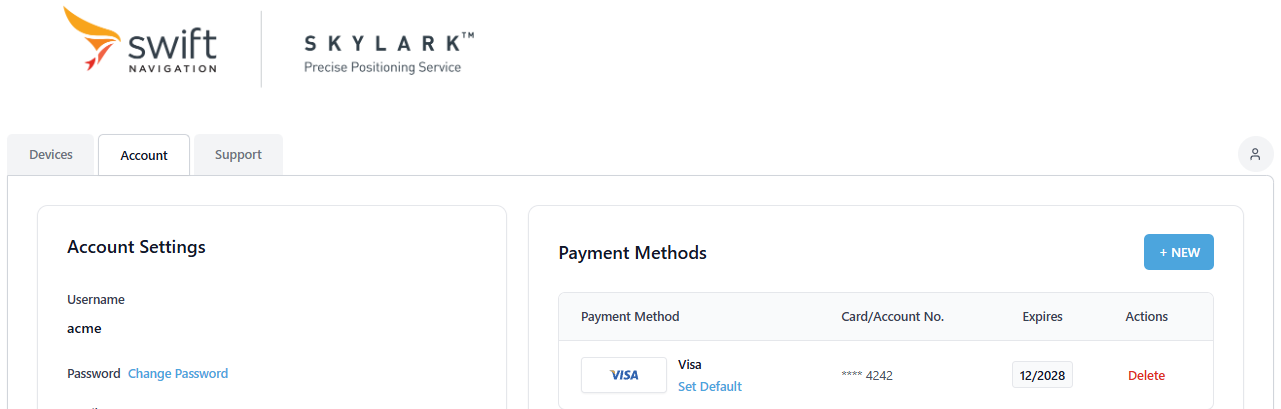
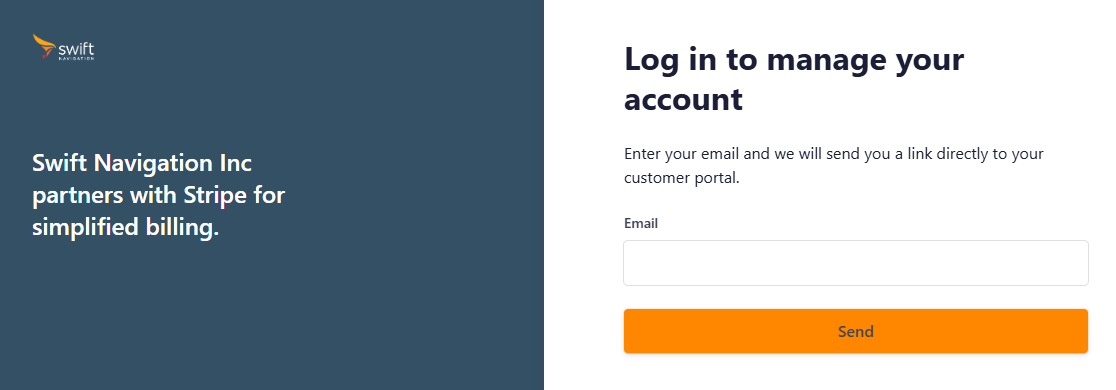
To see the payment history click View Payment History link at the bottom right of the Account tab. You'll be redirected to Stripe website with your payment history. For authentication you'll need to enter the email address associated with your account.
Adding Devices
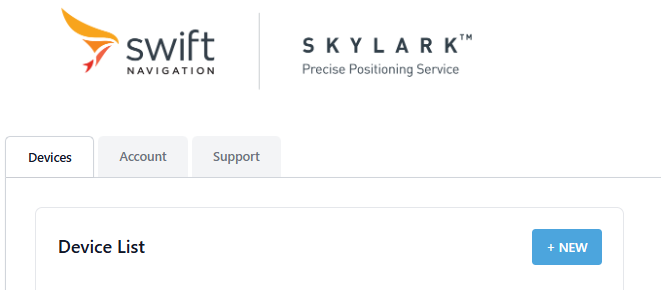
To add a device to your account click the NEW button on Devices tab.
A valid payment method or a promo code is required to add a device. If a promo code is available, it can be entered in the CODE section. After entering the promo code, click APPLY button to validate the code.
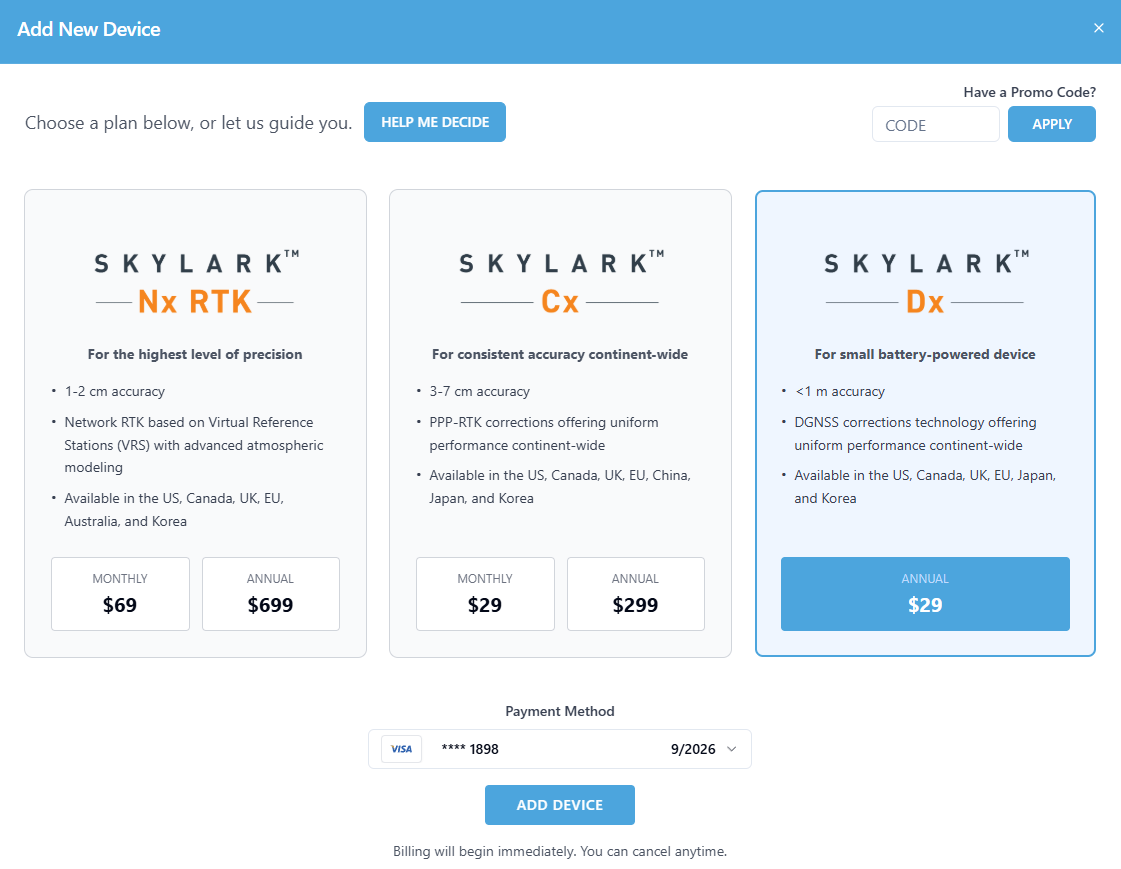
After selecting the plan and the payment method click ADD DEVICE button.
Your new device will be created and the NTRIP client credentials displayed. The system will also send an email confirmation with NTRIP credentials.
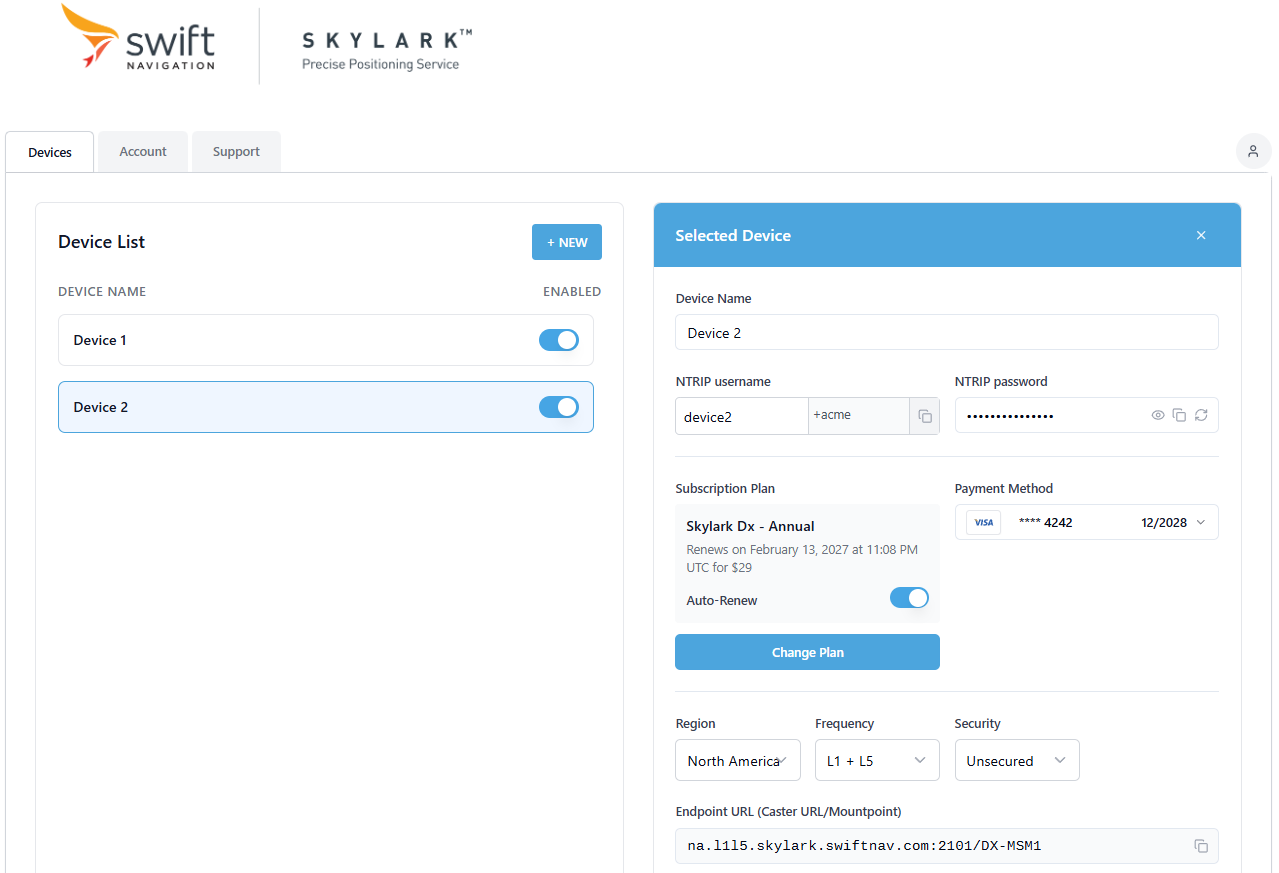
Use selection lists at the bottom to display constructed NTRIP host name, port and mountpoint appropriate to your location and the receiver. They, together with username and password, need to be entered in the NTRIP client configuration on your GNSS receiver to receive corrections.
NOTE: Once the window is closed or view changed, the NTRIP password will not appear again and a new password would need to be generated if it was lost.
Removing Devices
To remove device and delete subscription select device to be removed on the Devices tab, and click Delete button.
A confirmation pop up window will be displayed.
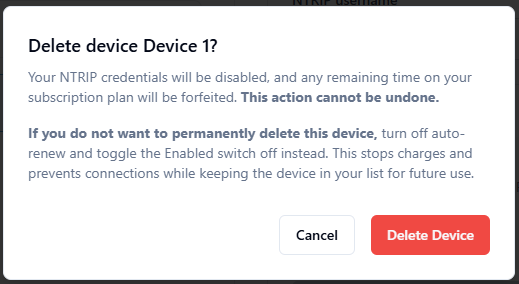
Click Delete Device to permanently delete the device and the subscription from your account.
Account Settings
Account settings such as password, first name, last name, company name can be changed on the Account tab.
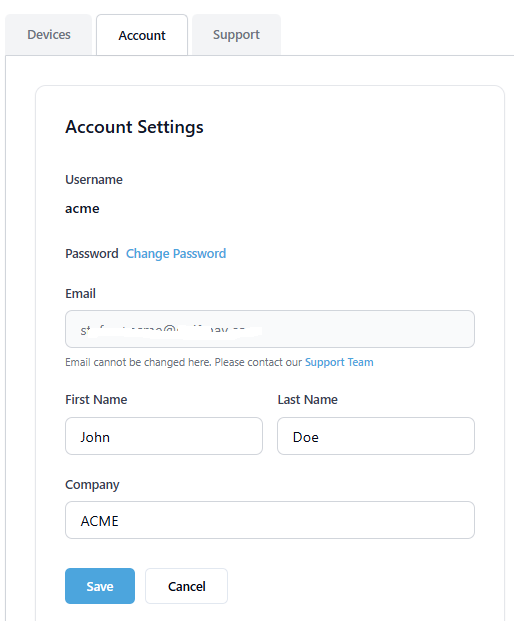
After making changes click the Save button.
Related Articles
NTRIP Client Configuration for Skylark Corrections